Implement a Prepaid Commit and Overage Pricing Model
Overview
In this guide, you’ll learn how to implement a hybrid pricing model that consists of the following fixed-rate and usage-based components:
- Prepaid commit price
- Usage-based, postpaid overage fee
Customers pay for the commit price at the beginning of each month; it doesn’t depend on the amount of usage. Once a customer exceeds their alloted usgae limit for the plan they’ve subscribed to by paying the commit price amount, Moesif starts tracking and metering the overage fee. Overage charge is calculated based on usage and invoiced at the end of each month. Thus, an invoice has both the prepaid for next month and overage from the preceding month.
In this example, the product offers two different plans for customers with the following commit prices:
- $875 per month
- $1,125 per month
The product has two different amounts of overage fees, to appropriately charge the each of the two base commitment customers. Overage calculation starts once subscribed customers reach the specific usage threshold of 250k API calls.
Objectives
- Create a product in Stripe.
- Create the commit prices for the product in Stripe.
- Create the corresponding overage prices in Moesif.
- Create a company cohort to define overage criteria and customers.
- Create billing meters in Moesif for the overage prices to define how to meter and charge overage users.
Before You Start
Make sure you have active accounts in the following platforms:
Set up Stripe
This tutorial uses Stripe as the billing provider. Moesif tracks product usage, meters the usage according to a billing meter, and sends the details to Stripe. Stripe then charges the customer.
To configure Stripe for this tutorial, follow these steps:
- From your Moesif Web Portal , go to Billing Meters.
- Select Edit Billing Provider.
- Select Stripe.
-
Follow the instructions in the dialog. For more information, see the following sections of our Stripe integration documentation:
Create Product and Commit Prices in Stripe
- Go to your Stripe Dashboard.
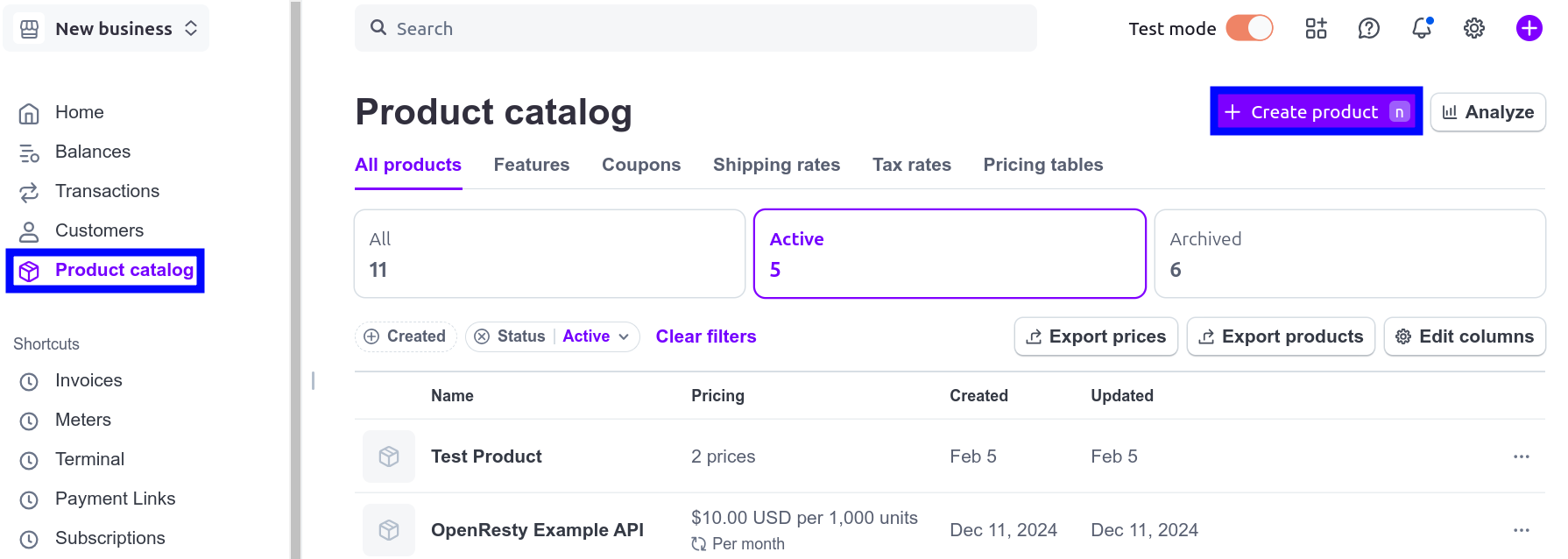
- Go to Product catalog and then select Create product.

- Enter a name for the product and an optional description.
- Select Recurring, enter the price amount
$875, and choose the monthly billing period. - Select Add product to finish.
Add another price to the product by following these steps:
- In the Product catlog screen, select the product you just created and then select the plus + icon in the Pricing section.
- Select Recurring and the flat rate pricing model.
- Enter the price amount
$1,125and choose the monthly billing period. - Select Create Price.
Here’s an example product called Licensed with two prices:
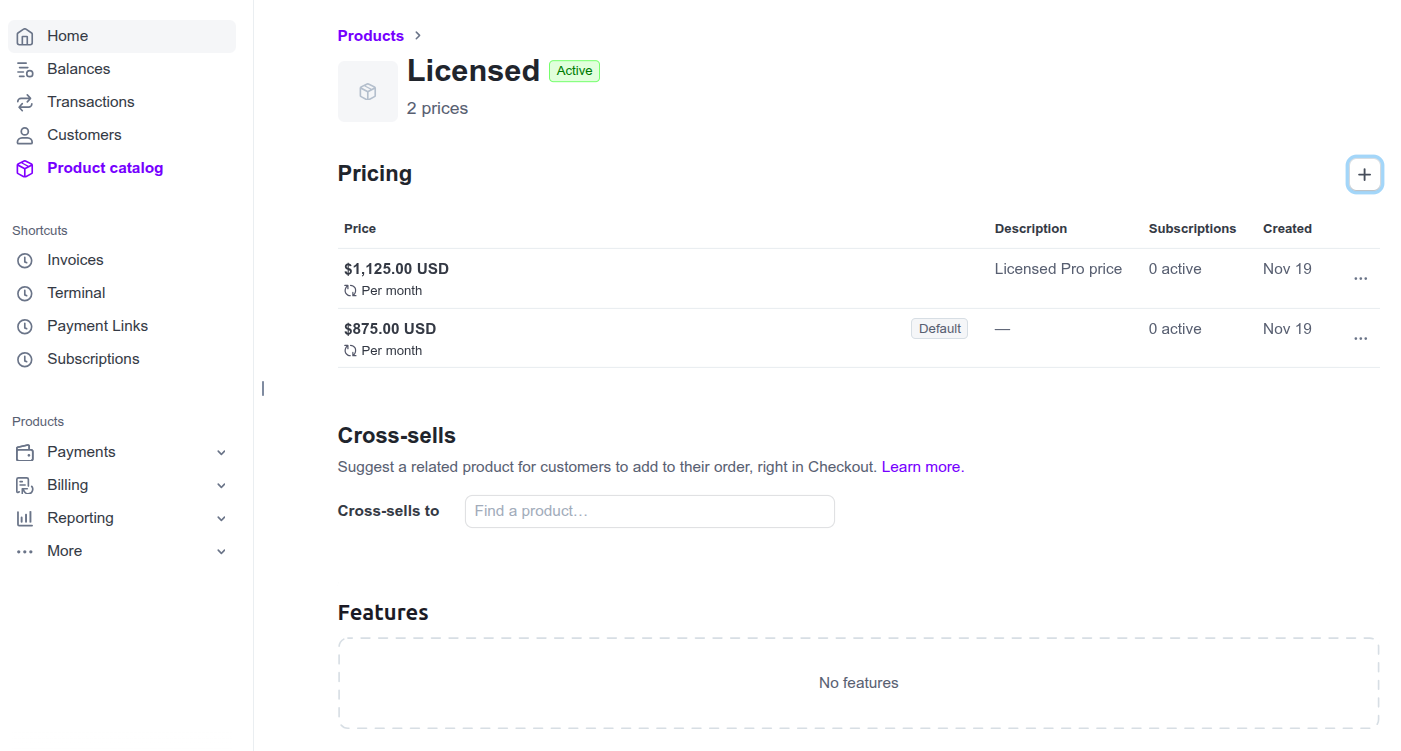
The products and prices you have in Stripe appears in Moesif’s Product Catalog Plans and Prices. Any new product and price you create also syncs automatically between Moesif and Stripe, irrespective of which platform you create them in.
Create Overage Prices in Moesif
Follow these steps to create the two corresponding overage prices in Moesif.
- Go to Moesif web portal.
- Select + Create New and then select Price in the API Monetization section.
- Enter a name for the price.
-
Link the price to the product you created earlier. Stripe products map to Plans in Moesif.
-
Define the pricing details:
a. Select Per Unit (Package) pricing model.
b. Specify the price structure as $3.5 per 1000 units rounded up.
c. For usage measurement method, select Stripe Price Meter. Then create a new meter by selecting Create New Meter. Make sure that the meter aggregates the usage monthly by selecting Month from the time period dropdown. Then enter these details:
- The meter name
- The event name the meter tracks
- Sum as the method for aggregating usage data
- Select Create to finish.
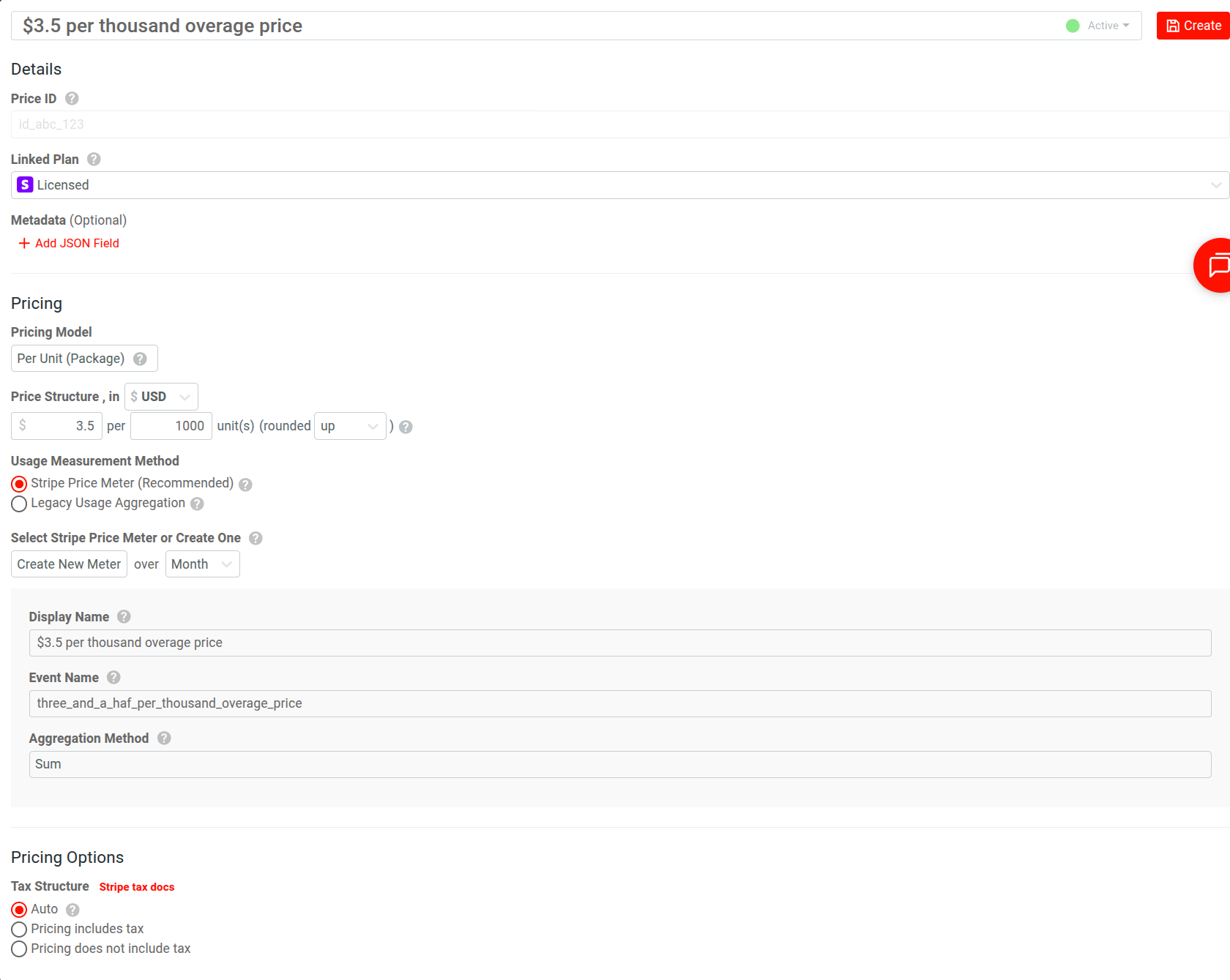
Following the preceding steps, create the other overage price that charges $4.5 for each 1000 units of usage.
Create Overage Customers Cohort
In Moesif, cohorts define a dynamic list of users that match specific criteria. In this case, we create a cohort that defines the criteria for overage customers. When a customer exceeds their usage limits, Moesif will automatically add them to this cohort.
For this tutorial, the cohort has the following properties:
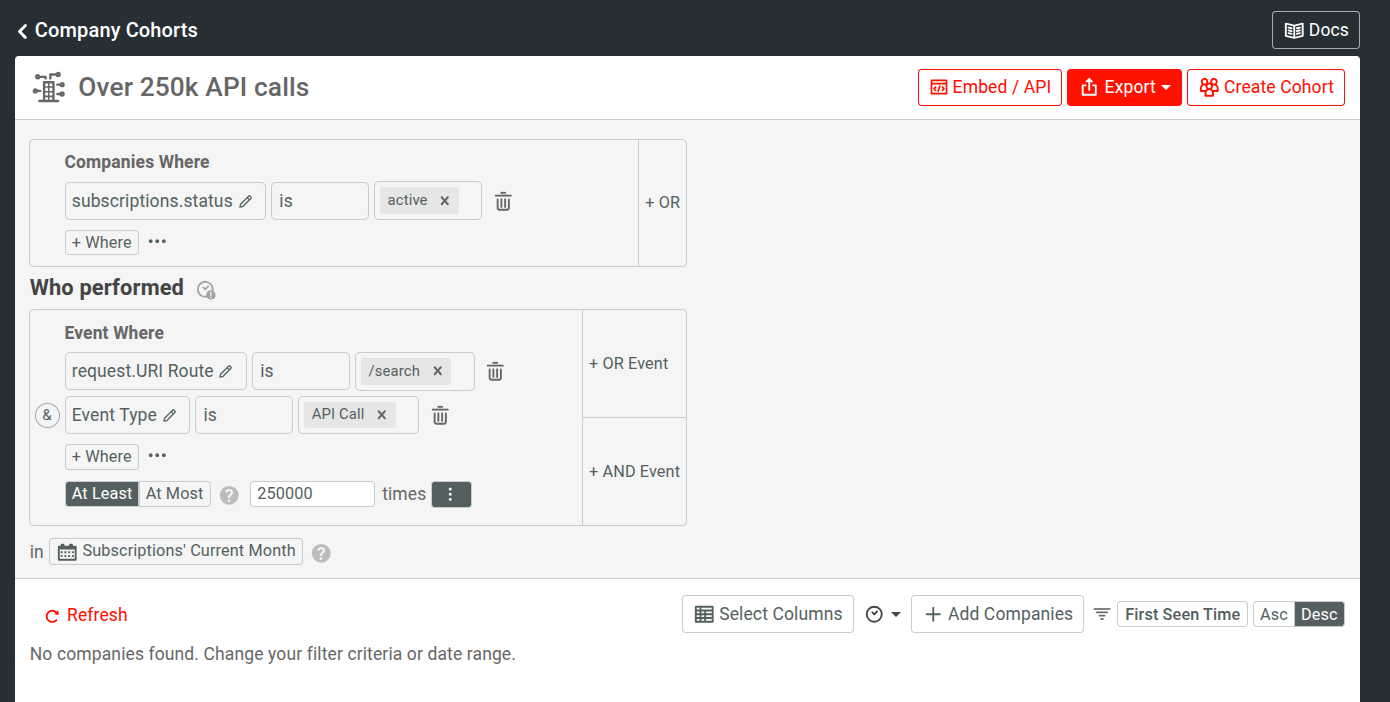
- It only includes companies that possesses an active subscription.
- It only counts API Call event types to specific API endpoints.
- It considers a customer overage if they exceed 250k API calls in the subscription’s current monthly period.
Follow these steps to create the cohort:
- Go to your Moesif Web Portal.
- Select + Create New and then select Company Cohort in the Customer Experience section.
- Enter a name for the cohort—for example,
Over 250k API calls. - To only include companies that possesses an active subscription, specify the
filter
Subscriptions.status.is.active. -
Specify event filters:
a. Select
Event Type.is.API Call.b. Specify the relevant API endpoints from
Request.URI Route. - Enter
250000as the event threshold value and theAt Leastmodifier to define the overage threshold. - Select Subscriptions’ Current Month as the time period.
- Select Create Cohort.
Create Billing Meters for Overage
Create two billing meters for the two overage prices. The following creates a billing meter for the $3.5 per thousand overage price. Follow the same steps to create the other billing meter.
- Go to your Moesif Web Portal.
- Select + Create New and then select Billing Meter in the API Monetization section.
- Enter your billing meter name.
-
Specify the billing provider information:
a. Select Stripe as the billing provider.
b. Select the product.
c. Select the $3.5 per thousand overage price you created earlier.
-
In the Filters pane, specify these filers:
a. Open the Performed By list and select the the overage customers cohort you created earlier.
b. Disregard API errors by filtering out HTTP response status codes below 299 by selecting the
Response. Status Codefilter and the less than (<) comparison operator. - In the Metrics pane, define the Event Count metric to bill on so the billing meter accurately tracks and meters API call events for overage.
- Select Create to finish creating the meter.
Here’s how this meter looks:
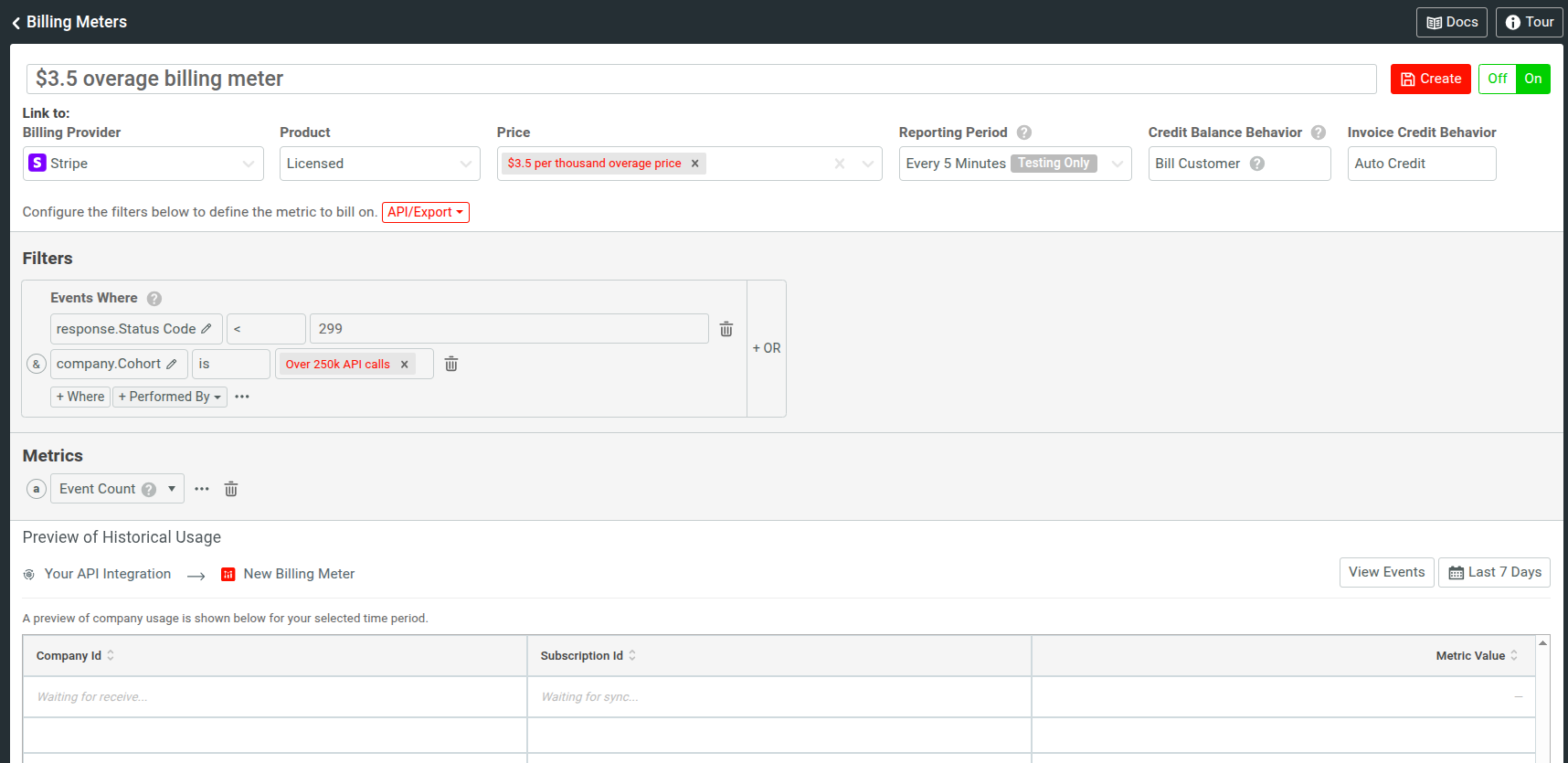
Depending on which overage price a customer has been subscribed to, Moesif tracks and meters the usage and sends the data to Stripe to charge the customer for overage.