Logging API Calls
API Calls are one of the two event types that can be logged to Moesif for analysis (the other being custom actions). API Calls are automatically logged when using one of the server integrations for popular API gateways and web frameworks. Once logged to Moesif, the rest of the data processing is handled automatically.
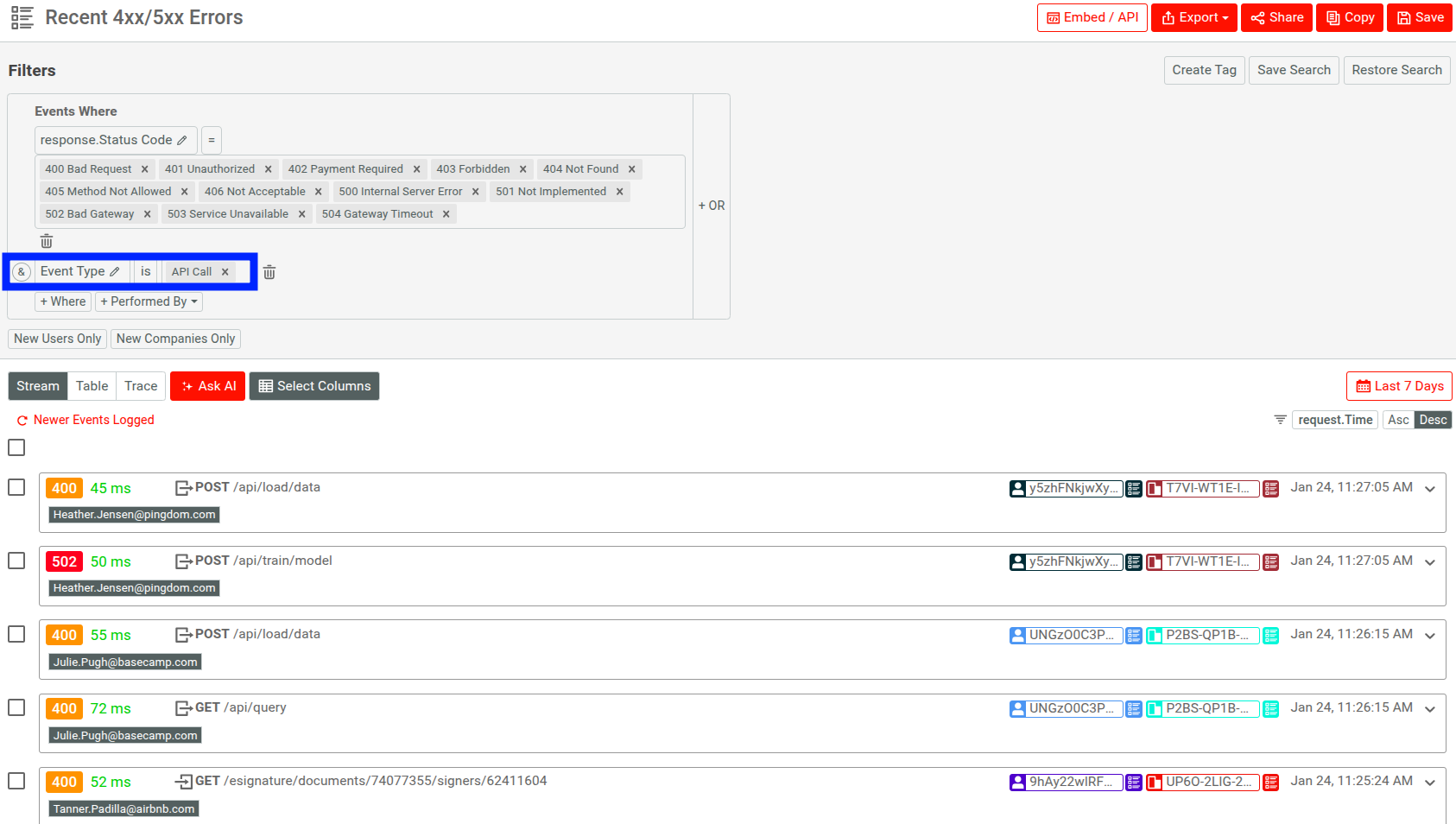
To filter by API Calls in Moesif, select the Event Type filter and then pick API Call. Then, you’ll see your live API logs, as shown below:
Default fields
Moesif will automatically analyze various default fields, such as HTTP Headers, body fields, and query parameters. Any of these fields can be used in Moesif’s powerful filtering and aggregations.
Body payloads
Moesif will also provide metrics on payload keys for supported content types. JSON, XML, SOAP, GraphQL, and other text formats are currently supported. Moesif also works with binary formats like ProtoBuf, but you may be missing certain aggregations and metrics related to the body fields.
If you have sensitive data such as financial or healthcare, you can leverage client-side encryption or disable body logging.
AI Context
Every LLM API call costs real money. AI gateways track token spend, but proxy hops can add 20 to 50 milliseconds of latency to every request. Moesif extracts token counts and model names from your API events. It calculates dollar costs automatically using standard provider pricing. You monitor spend, track unit economics, and identify top usage drivers across every customer account.
For information about AI Context data fields, see AI Context Filters.
Send AI Context Metadata
To track AI usage, include an ai_context object inside your event object.
{
  "request": {},
  "response": {},
  "ai_context": {
    "provider": "openai",
    "model": "gpt-4o-2024-05-13",
    "model_type": "chat",
    "usage": {
      "prompt_tokens": 1050,
      "completion_tokens": 420,
      "total_tokens": 1470,
      "cached_tokens": 512,
      "reasoning_tokens": 0,
      "cache_read_input_tokens": 1,
      "cache_creation_input_tokens": 1
    },
    "attribution": {
      "feature_id": "smart_summary_v2",
      "team_id": "content_ops",
      "session_id": "sess_987654321"
    },
    "cost_metrics": {
      "total_input_cost": 0.00269,
      "cached_input_cost": 0,
      "cached_read_cost": 0,
      "cache_creation_cost": 0,
      "reasoning_cost": 0,
      "output_cost": 0.0063,
      "total_cost": 0.00899,
      "price_version": "2026-02-v1"
    },
    "finish_reason": "stop"
  }
}
The usage object records raw token numbers. Providers discount cached tokens by up to 50 percent compared to fresh prompt tokens. Tracking cached tokens reveals exact savings from prompt caching. The attribution fields map API spend to internal product features, teams, and user sessions.
How Cost Calculation Works
Moesif calculates cost_metrics at ingestion time using model rates from major providers. You do not need to calculate costs in your application code.
If you have custom vendor discounts or enterprise pricing, pass your own cost_metrics object. When Moesif detects an incoming cost_metrics field, it uses your pre-calculated value and skips automatic calculation.
{
  "metadata": {
    "ai_context": {
      "cost_metrics": {
        "total_input_cost": 0.00529
      }
    }
  }
}
Track Unit Economics and Margins
Isolated cost data hides product profitability. Moesif links AI usage costs to customer billing data from Stripe, Recurly, or custom billing systems.
For example, you can create a formula metric in Moesif to monitor gross margins per account: (Revenue - Estimated_AI_Cost) / Revenue
If a customer pays $100 monthly but generates $85 in LLM costs, their margin drops to 15 percent. You can set threshold alerts in Moesif to notify your team when account margins fall below target levels. You spot unprofitable accounts before billing cycles close.
Get Started with AI Context Dashboard Template
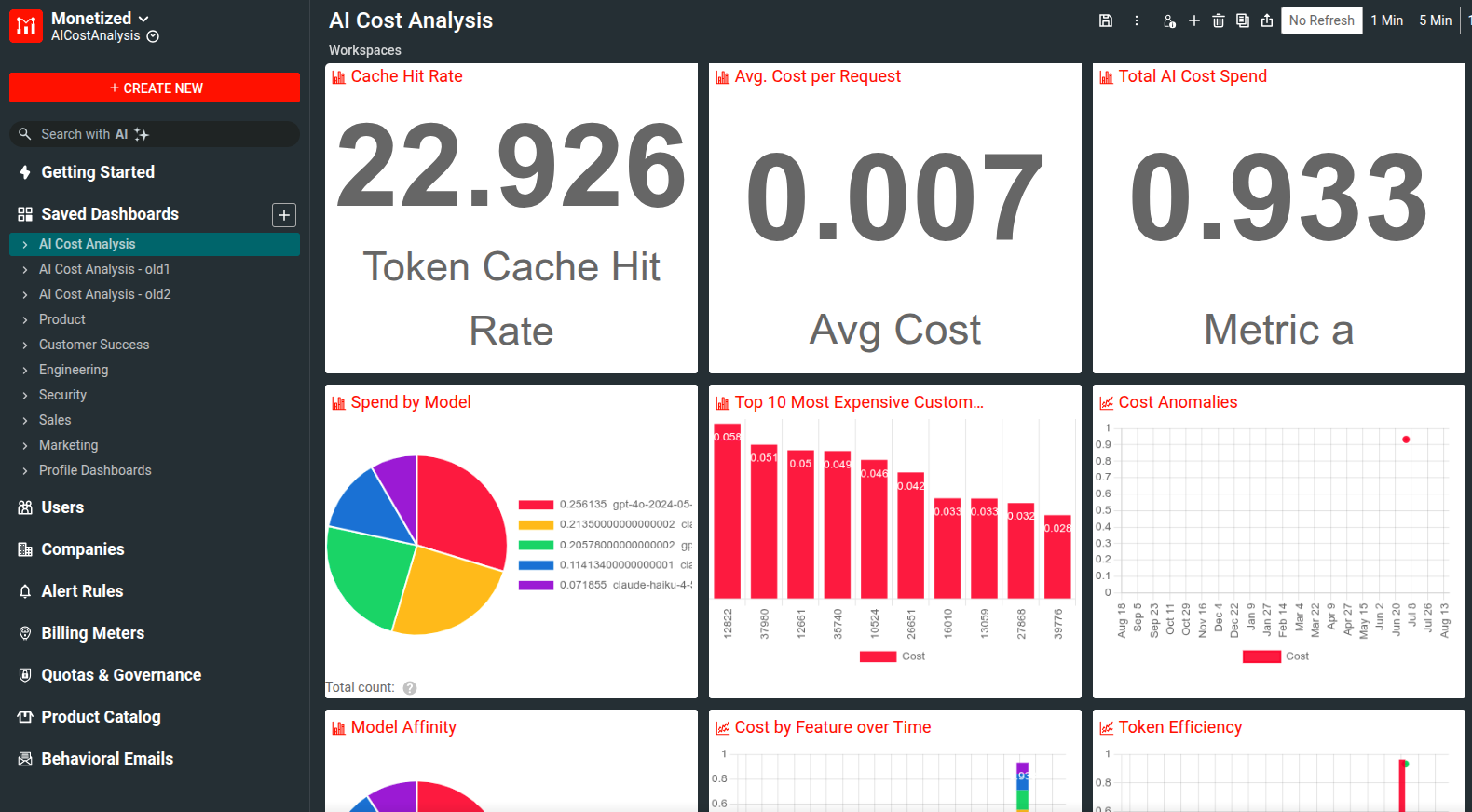
Use the prebuilt Dashboard template for AI Context to get started with AI cost analytics. The template creates charts that give insights into expenses by model, total AI costs, most expensive customers, and so on. Follow these steps from the Moesif Web Portal:
- Select + Create New in the navigation menu.
- Select Dashboard Templates.
- Select the AI Cost Analytics template.
The new dashboard appears under the saved dashboards. For example:
Parsing URL-encoded form data
When using URL-encoded form data, pay attention to how you define the key-value pairs.
If the URL-encoded form data has multiple keys, Moesif considers them as arrays for the following formats:
credits_array=1&credits_array=1&credits_array=1&credits_array=1
credit_array[]=1&credit_array[]=1&credit_array[]=1&credit_array[]=1
In both cases, Moesif translates them into the array "credit_array"=>["1", "1", "1", "1"].
For all other formats of URL-encoded data with multiple keys, Moesif processes them as strings rather than arrays:
credit_array=[1,1,1,1]
credit_array=1,1,1,1
credit_array=1%2C1%2C1%2C1
credit_array[0]=1&credit_array[1]=1&credit_array[2]=1&credit_array[3]=1
Event metadata
Besides the default API fields Moesif already analyzes, you can append custom event metadata to any API call. For example, you may want to save tracing information, virtual machine identifiers, or other context variables with an API call.
{
  "some_string": "I am a string",
  "some_int": 77,
  "some_object": {
      "some_sub_field": "some_value"
    }
}
Saving event metadata
Each SDK has a slightly different way to save event metadata, browse your specific server integration for details.
In order to save metadata, override the respective getMetadata() function in your SDK’s options. The SDK’s getMetadata hook will pass in both the request and response object for context, which you can read when setting metadata fields.
For example, the below code will parse the version string from the URI, such as in /api/v1/:items, and also read an environment variable called CATEGORY, which contains the location.
options.getMetadata = function (req, res) {
  let versionRegex = /v\d*/;

  return {
    api_version: versionRegex.match(req.uri)[0],
    category: process.env.CATEGORY
  };
}
Using event metadata
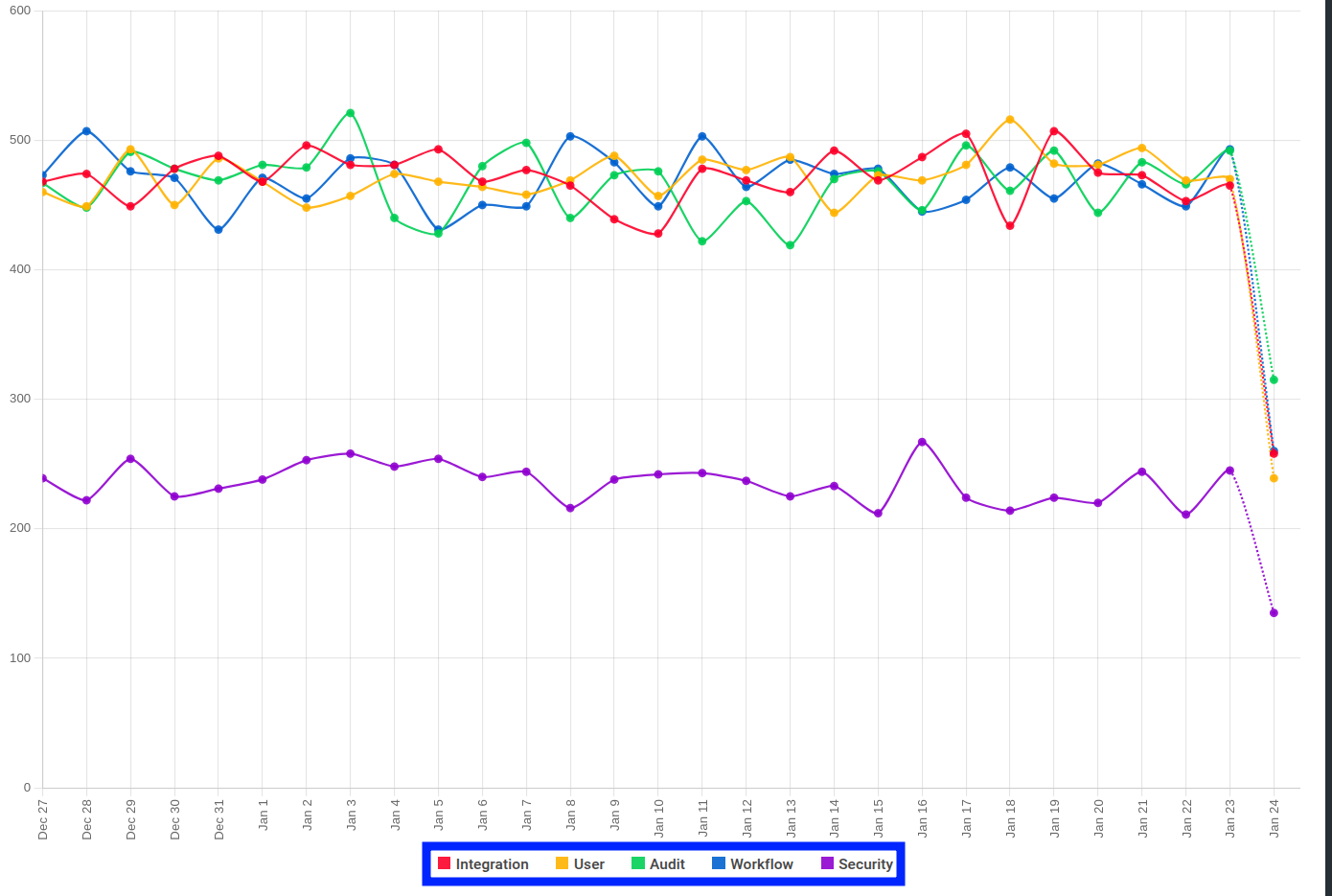
Now that we are tracking custom event metadata, we can create metrics reports within Moesif. For our example above, we can understand which data-center locations are seeing the most API traffic.
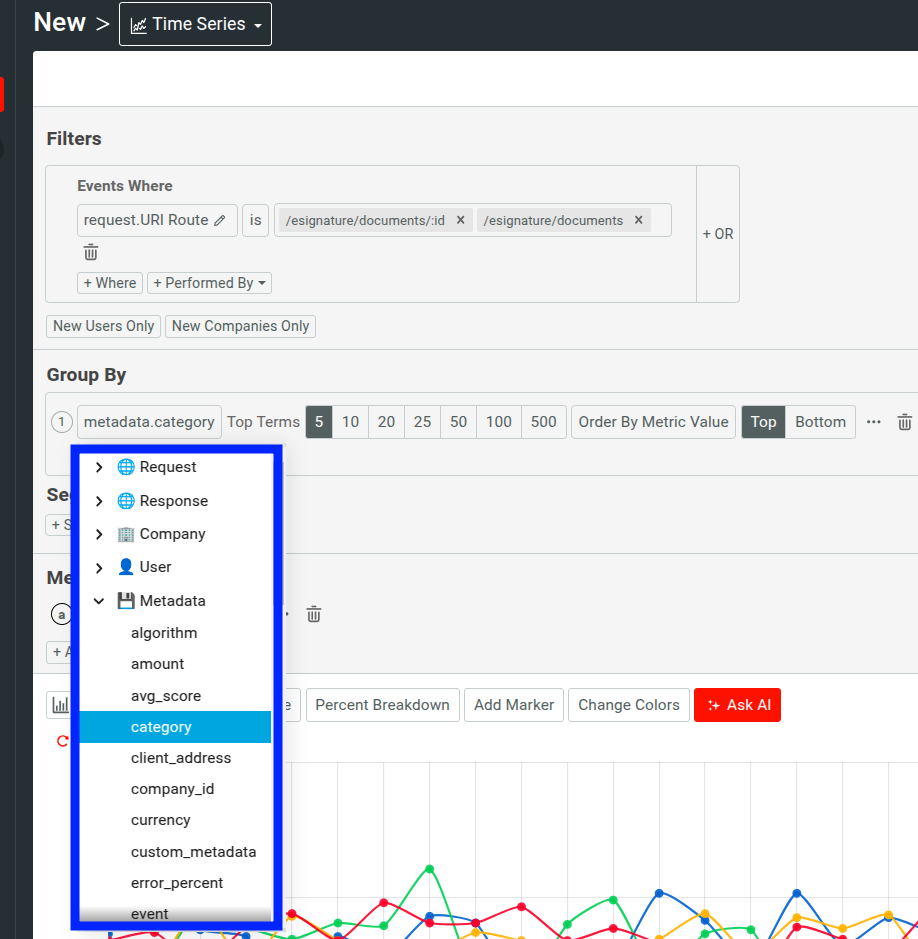
To do so, we can select Time Series under the + Create New button on the left-side navigation. You can open the Metadata within any filter/group by/metric dropdowns.
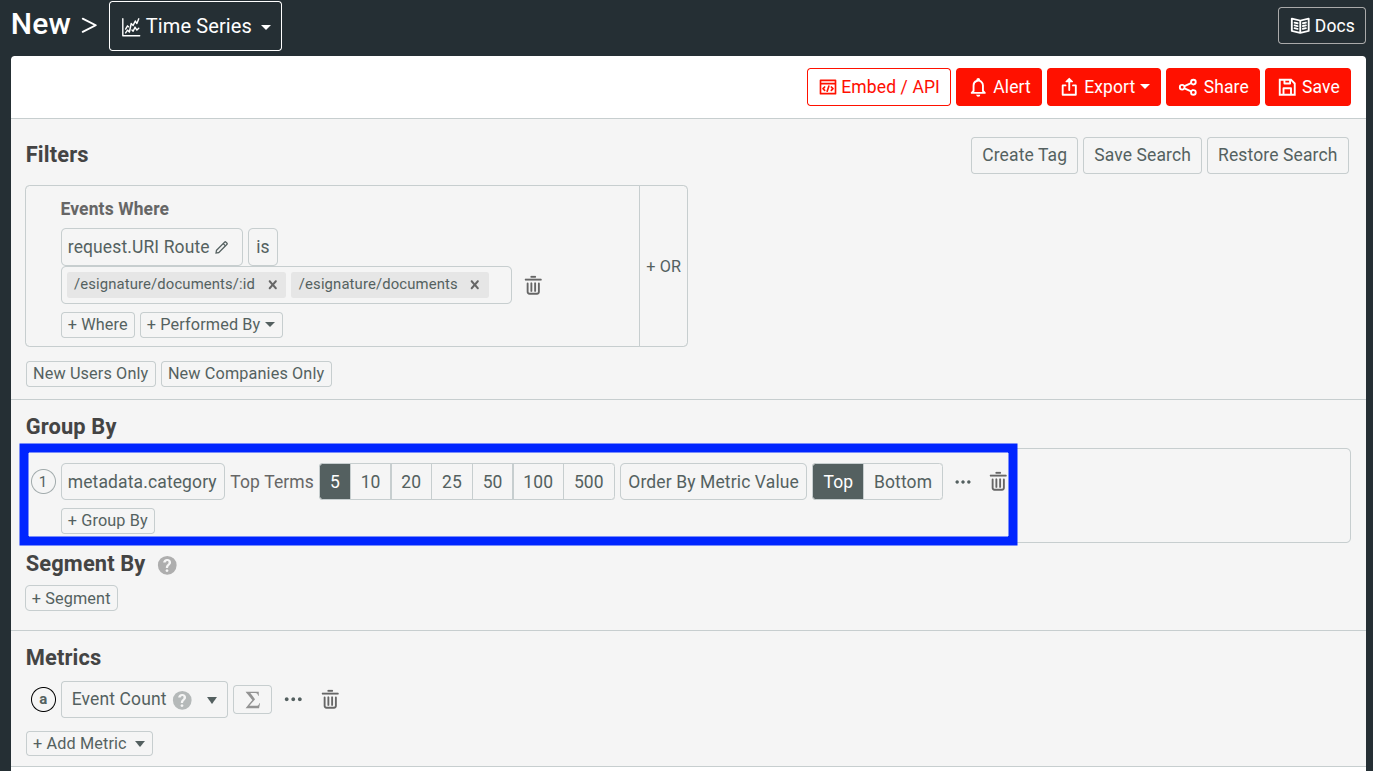
In our example, we select metadata.category, now our chart will show the daily API calls broken down by different categories:
Best practices
Follow these best practices when defining event metadata.
Maintain consistent data types
Once a specific JSON key is seen by Moesif with a specific JSON data type, you cannot send a different JSON datatype using the same key. For example, if you previously sent to Moesif the following event metadata for an API call:
{
  "some_string": "I am a string",
  "some_int": 77,
  "some_object": {
      "some_sub_field": "some_value"
    }
}
Then, Moesif automatically saves some_string as a JSON string in the metadata
schema. You cannot later send a JSON Number using the same some_string key.
This is true regardless of the number of levels relative to the object root.
The below metadata would now be invalid:
{
  "some_int": 77,
  "some_object": {
      "some_string": 23,
      "some_sub_field": "some_value"
    }
}
The metadata schema is specific to each application you create in Moesif. For example, your development environment can be different than your prod environment.
Avoid dot characters
Be aware that Dot characters in a JSON key for event metadata will be converted into an underscore by Moesif automatically. However, Dot characters in a JSON value are fine and will not be transformed.
For example,
{
  "so.me_str.ing": "I am a string",
  "some.int": 77.23
}
Will be converted by Moesif to:
{
  "so_me_str_ing": "I am a string",
  "some_int": 77.23
}